


EZCAD2 Download: Setup Guide for Laser Marking Machines
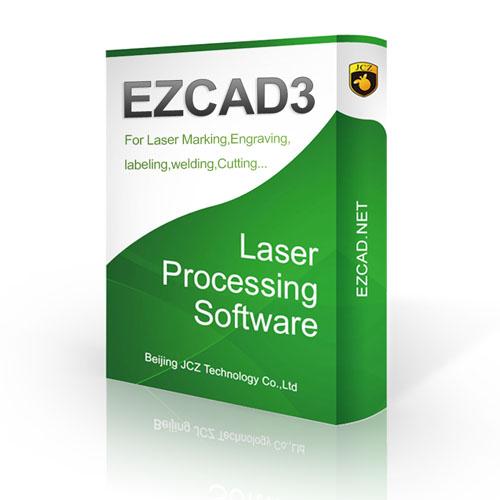
EZCAD2 download is a common search for professionals who need software to operate compatible laser marking and engraving machines. EZCAD2 is widely associated with fiber laser marking systems and certain other laser configurations that use compatible control hardware. It allows users to prepare marking designs, configure parameters, and send jobs to supported laser equipment.
Whether you work in metal engraving, industrial product identification, jewelry marking, or customized manufacturing, understanding how to obtain and configure the correct software can help you establish a reliable marking workflow.
What Is EZCAD2?
ezcad2 download is laser marking software designed to work with compatible laser controllers. It provides a workspace for creating text, importing graphics, arranging objects, and configuring marking parameters according to the connected machine's capabilities.
Manufacturers and workshops use this software for applications such as serial number marking, logos, barcodes, QR codes, product labels, and decorative engraving. The exact functions available depend on the software version, controller, and laser system being used.
Before installing the program, identify your machine model and controller type. Software compatibility is essential because an incompatible installation may fail to communicate with the laser marking equipment.
Where to Find an EZCAD2 Download
When looking for an EZCAD2 download, prioritize the official website of your laser machine manufacturer or the supplier who provided your equipment. These sources are more likely to offer a compatible software package, installation instructions, and the appropriate controller drivers.
Follow these steps to locate the correct installation files:
-
Identify the laser marking machine model and controller.
-
Visit the manufacturer's official support or download page.
-
Contact the supplier if the software is not publicly available.
-
Confirm the version and operating system requirements.
-
Download the installation package from a trusted source and scan it before installation.
Avoid unfamiliar download websites that distribute modified installers or software bundles. Such files may contain unwanted programs or fail to support your machine correctly.
How to Install EZCAD2
After obtaining the correct installation package, prepare your computer for setup. Close unnecessary applications and review the manufacturer's installation instructions.
Extract the downloaded archive if the files are compressed. Open the installer or follow the supplied setup procedure. Some configurations require specific drivers or additional components to establish communication between the computer and the laser controller.
Install only the drivers recommended for your equipment. Depending on the controller and operating system, administrator permissions or additional configuration may be necessary.
Once installation is complete, connect the computer to the marking system according to the manufacturer's instructions. Open the software and verify that the correct controller is detected before attempting to operate the machine.
Configuring Your Laser Marking Software
Correct configuration helps maintain consistent marking quality. Begin by confirming the machine's supported settings and the material you intend to process.
Important parameters may include laser power, marking speed, frequency, pulse width where supported, and the number of marking passes. The available options depend on the laser source and controller.
Use the manufacturer's recommended starting parameters for your particular machine. Test the settings on a suitable sample before processing valuable products or production batches.
For logos and graphics, check the dimensions, alignment, and object placement in the software workspace. For text and identification codes, confirm that the content is readable and positioned correctly.
Common EZCAD2 Installation Problems
Users may encounter issues when installing or launching the software. Several basic checks can help identify the cause.
Software does not open: Verify that your Windows version meets the software requirements and that all necessary components are installed.
Controller is not detected: Check the USB connection, controller drivers, and power supply. Confirm that the selected software version supports the installed controller.
Marking results are inconsistent: Review the machine configuration, focus distance, material properties, and marking parameters. Incorrect settings can affect the final result.
Installation files are missing: Return to the original supplier or manufacturer for a complete, verified package instead of downloading individual files from untrusted websites.
If these steps do not resolve the issue, consult the machine supplier before changing controller settings or replacing drivers.
Choosing Compatible Laser Marking Equipment
Software is only one part of a successful laser marking setup. The laser source, controller, optical components, work area, and material requirements all influence the final output.
Fiber laser marking machines are commonly used for marking metals such as stainless steel, aluminum, and selected alloys. Different systems may be suitable for plastics, coated materials, or other substrates, depending on their specifications.
When purchasing new equipment, ask the supplier to confirm software compatibility, controller support, installation assistance, and access to technical documentation. These details can simplify setup and help reduce avoidable production interruptions.
Safe Operation and Maintenance
Before operating a laser marking machine, follow the manufacturer's safety instructions. Use suitable laser safety enclosures, interlocks, and protective eyewear specified for the laser wavelength and application. Never bypass safety systems.
Keep the computer and controller connections secure, maintain a clean working environment, and back up important marking files and machine configurations where supported. Regular maintenance and careful parameter management can help maintain consistent results over time.
Final Thoughts
Finding the right EZCAD2 download begins with confirming your laser marking machine and controller specifications. Obtaining the software from your equipment supplier or an authorized source helps ensure compatibility and reduces the risk of installation problems.
With the correct installation, appropriate configuration, and safe operating practices, EZCAD2 can support everyday engraving and marking tasks across a range of compatible applications. Before starting production, verify the controller connection, test the marking parameters, and consult your supplier whenever technical compatibility is uncertain.

 English
 Arabic
 French
 Spanish
 Portuguese
 Deutsch
 Turkish
 Italiano
 Russian
 Romaian
 Portuguese (Brazil)
 Greek
Greek